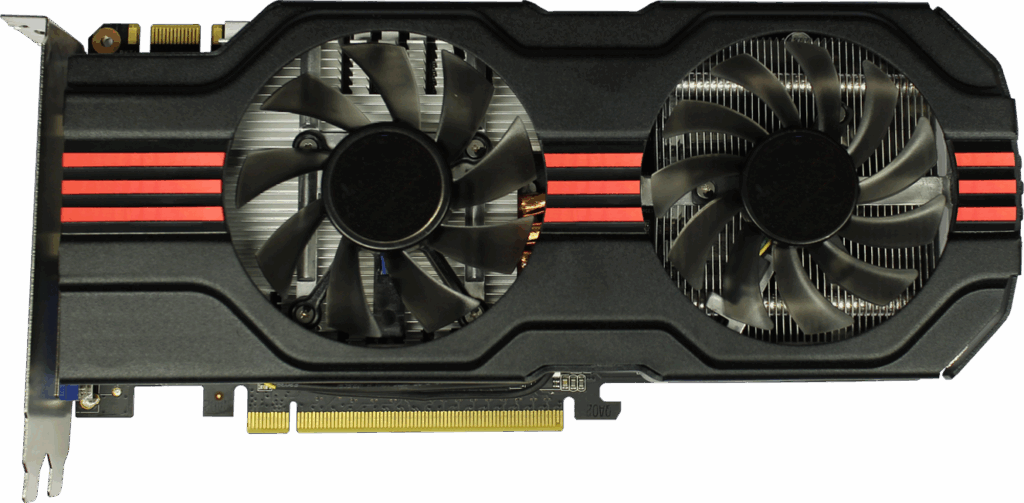
You invested in a powerful GPU for buttery-smooth gameplay—so why are you still dealing with stutters, low FPS, and inconsistent performance? If your system isn’t delivering the experience you paid for, the issue likely isn’t your hardware—it’s your optimization. This guide cuts through the noise and walks you step by step through proven graphics card performance tweaks used by hardware enthusiasts and esports pros. You’ll learn how to unlock hidden power from your GPU, boost frame rates, and fine-tune settings for a smoother, more responsive gaming experience that maximizes every frame.
The Foundation: Essential Driver and System Tune-Ups
The Critical First Step
Outdated graphics drivers are the #1 cause of poor performance—and that’s not just opinion. NVIDIA reports regular “Game Ready” driver updates delivering measurable boosts in new releases, sometimes improving performance by 10% or more in supported titles (NVIDIA Driver Release Notes). In other words, if your drivers are old, your GPU may never reach its advertised potential.
Some gamers argue, “If it isn’t broken, don’t fix it.” Fair point—driver updates can occasionally introduce bugs. However, most modern updates are optimized for day-one patches and stability fixes. Skipping them often means lower FPS, stuttering, or crashes.
Clean Installation Guide
First, download NVIDIA GeForce Experience or AMD Software: Adrenalin Edition. Choose the clean installation option during setup. For persistent issues, use DDU (Display Driver Uninstaller) in Safe Mode to completely remove old files before reinstalling. This ensures no corrupted remnants linger (think of it as wiping the slate clean).
System-Level Optimizations
Next, enable Windows Game Mode, disable high-impact startup apps via Task Manager, and set your Power Plan to “High Performance.” These small adjustments support better resource allocation and complement graphics card performance tweaks.
For deeper refinements, see a complete guide to in game settings for maximum performance.
Actionable Tip: Set a recurring calendar reminder to check for new drivers before major game launches. Timing matters.
Your GPU’s Command Center: Mastering NVIDIA & AMD Control Panels
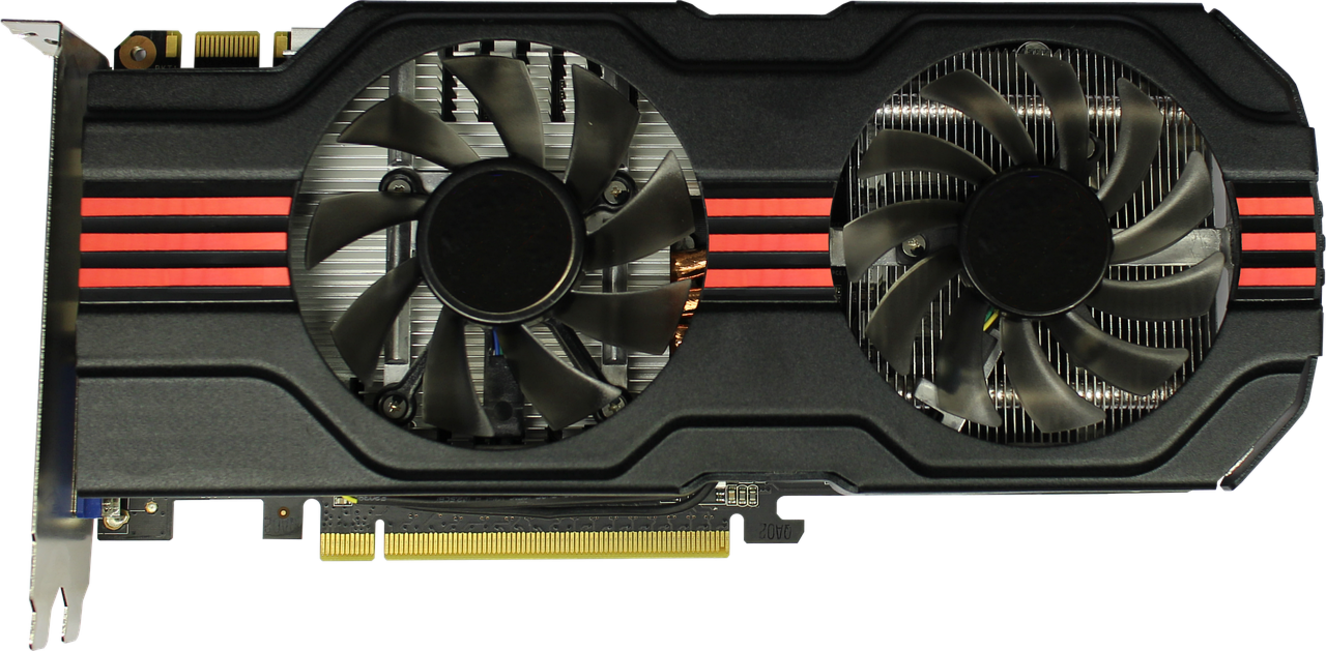
Most gamers never open their GPU control panel. They install drivers, launch a game, and hope for the best. But beyond default settings lies serious untapped power.
Think of your control panel as mission control for PERFORMANCE. A few smart adjustments can mean smoother frames, lower input lag, and more consistent gameplay (yes, even in those chaotic final-circle moments).
Some argue modern drivers auto-optimize everything. That’s partly true. But auto isn’t optimized for you—your monitor, your refresh rate, your competitive priorities.
Key NVIDIA Settings Explained
Tweak these for immediate gains:
- Power Management Mode → Prefer Maximum Performance: Prevents GPU downclocking mid-game, delivering stable FPS.
- Low Latency Mode → On or Ultra: Reduces the render queue, cutting input delay (crucial for shooters).
- Texture Filtering – Quality → High Performance: Slight visual trade-off, noticeable FPS boost.
The benefit? LOWER LATENCY and more consistent frame pacing—especially in competitive titles.
Key AMD Settings Explained
- Radeon Anti-Lag: Synchronizes CPU and GPU timing to reduce input delay.
- Radeon Boost: Dynamically lowers resolution during fast motion for higher FPS.
- Anisotropic Filtering: Enhances texture clarity at angles; lowering it improves performance.
These graphics card performance tweaks translate into faster reactions and smoother camera movement.
Per-Game Profiles
Create custom profiles for demanding games. Keep global settings balanced, then push competitive titles toward performance. This way, you maximize frames WHERE IT COUNTS without sacrificing cinematic visuals elsewhere.
Pro tip: Benchmark before and after changes to measure real gains.
Mastering your GPU’s command center means more control, better responsiveness, and a tangible competitive edge.
Beyond “Ultra”: Smart In-Game Settings for Maximum FPS
Cranking everything to ULTRA feels right (because bigger numbers must be better… right?). But some settings are classic FPS killers—they tank performance while offering barely noticeable visual gains.
The Big Four
Shadow Quality is notorious. High-resolution dynamic shadows demand serious GPU power, especially in open-world titles. Dropping from Ultra to High can boost frames significantly with minimal visual loss (Digital Foundry testing consistently shows double-digit FPS gains in demanding games).
Volumetric Effects—like fog and god rays—simulate light scattering through particles. Stunning? Yes. Necessary in firefights? Not really. Lowering volumetrics often delivers smoother gameplay instantly.
Ambient Occlusion (AO) adds depth by simulating how light interacts with surfaces. It’s subtle but expensive. SSAO (Screen Space Ambient Occlusion) is lighter than HBAO or ray-traced AO and usually “good enough.”
Anti-Aliasing smooths jagged edges. MSAA (Multi-Sample Anti-Aliasing) is sharp but heavy. FXAA (Fast Approximate AA) and TAA (Temporal AA) cost far less performance, though TAA can blur slightly. (Yes, it’s the eternal trade-off.)
The Ultimate Performance Booster
Resolution scaling tech changed everything. NVIDIA DLSS, AMD FSR, and Intel XeSS render at lower internal resolutions, then upscale using AI or advanced algorithms. The benefit? Near-native visuals with dramatically higher frame rates (NVIDIA reports up to 2x performance gains with DLSS in supported titles).
Think of it as built-in graphics card performance tweaks—without opening your case.
Finding Your Sweet Spot
- Lower one setting at a time.
- Benchmark using built-in tools.
- Prioritize stable frame pacing over raw FPS.
PRO TIP: Target 1% low frame stability, not just average FPS. Smooth wins games.
Advanced Tweaks: A Safe Introduction to Overclocking & Undervolting
Overclocking pushes your GPU’s clock speeds higher, while undervolting reduces voltage to cut heat without sacrificing stability. In practice, these graphics card performance tweaks can deliver smoother frame rates and quieter fans. However, they’re high-risk, high-reward moves best suited for enthusiasts comfortable voiding warranties.
Start with MSI Afterburner paired with RivaTuner Statistics Server for real-time monitoring. Then, make small, incremental adjustments—5–10 MHz at a time—and stress-test after each change using Unigine Heaven or 3DMark. If crashes or artifacts appear, dial back immediately. Pro tip: log tweaks so you can retrace settings.
From Lag to Lead: Your Optimized Gaming Experience Awaits
You came here because you were tired of choppy gameplay, random stutters, and FPS drops holding you back. Now you have the complete toolkit to turn your GPU from an underperforming bottleneck into a finely tuned gaming engine.
No more settling for lag as “just part of the game.” By applying smart driver updates, control panel adjustments, and in-game optimizations, you’ve taken full control through proven graphics card performance tweaks that deliver measurable results.
Don’t wait—apply the driver and control panel changes now. Experience smoother gameplay, higher FPS, and the competitive edge you’ve been missing. Start optimizing today and feel the difference immediately.