
Stuttering, lag spikes, and inconsistent frame rates are the biggest enemies of immersive and competitive gameplay. If your performance feels unstable, the issue isn’t just your hardware—it’s how it’s optimized. This guide delivers a clear, step-by-step process to fine-tune your in-game and system configurations for maximum performance. These aren’t generic tweaks; they’re battle-tested techniques used by competitive players to gain a real edge. By the end, you’ll have a complete toolkit to diagnose bottlenecks, apply the right boost fps settings, and achieve smoother, more responsive gameplay tailored to your specific setup.
The Big Four: Core In-Game Settings for Maximum FPS Gains
When you want immediate performance gains, start with the settings that actually move the needle. Not the flashy toggles—just the heavy hitters.
1. Resolution
Resolution determines how many pixels your GPU renders. More pixels = more work. For example, 1440p pushes about 77% more pixels than 1080p (NVIDIA). That’s a massive load difference.
If you’re struggling at 1440p, drop to 1080p and test your FPS again. Go step-by-step:
- Lower resolution one tier.
- Restart the match.
- Monitor FPS and frame stability.
If native resolution looks too blurry, try resolution scaling (rendering at, say, 90% of native). It’s less drastic but still effective.
2. Shadow Quality
Shadows are often the single most demanding setting in modern games. Switching from Ultra to Low can yield double-digit FPS gains.
In competitive shooters, lower shadows can even improve visibility (no dramatic cinematic shading hiding enemies in corners). Some argue Ultra shadows add immersion—and they do—but immersion doesn’t win ranked matches.
3. Texture Quality
Textures primarily impact VRAM (Video RAM). General rule:
- 4GB VRAM: Medium
- 6–8GB+: High/Ultra
If you exceed your VRAM limit, expect stutters. Lowering textures frees memory and smooths gameplay. (Pro tip: Watch VRAM usage in your GPU software overlay.)
4. Anti-Aliasing (AA)
AA smooths jagged edges. MSAA looks great but is performance-heavy. TAA balances visuals and cost. FXAA is lightweight and ideal for raw performance—or turn AA off entirely for maximum gains.
Combined, these boost fps settings deliver immediate improvements. For even smoother gameplay, review reducing input lag practical optimization techniques for gamers.
Fine-Tuning Visuals: Advanced Settings to Tweak
If you’re serious about performance, this is where you stop chasing pretty screenshots and start making SMART cuts.
Ambient Occlusion (AO) adds subtle contact shadows where objects meet, creating depth and realism. It’s a classic “luxury” setting—nice to admire, rarely essential mid-match. In my experience, turning AO off nets a 5–10% FPS gain with barely noticeable visual loss during actual gameplay (especially in fast shooters). Some argue it makes environments feel flat. Fair. But in competitive play, you’re tracking movement, not admiring brick crevices.
Post-Processing Effects—Motion Blur, Bloom, Lens Flare, and Depth of Field—are cinematic filters layered over gameplay. Motion Blur smears movement, Bloom exaggerates light glow, Lens Flare mimics camera artifacts, and Depth of Field blurs backgrounds. They look dramatic (very blockbuster trailer energy), but they hurt clarity and eat resources. I turn them ALL OFF. Critics say this makes games feel less immersive. Maybe. But I’d rather see enemies clearly than pretend I’m in a movie.
View Distance / Draw Distance controls how far objects render. Higher values tax both CPU (object calculations) and GPU (rendering). Ultra sounds tempting, but Medium is the sweet spot. You’ll still spot distant enemies without overloading your system rendering irrelevant rocks miles away.
Anisotropic Filtering sharpens angled and distant textures. Unlike most settings, it has minimal performance impact (often under 1–2% according to GPU benchmarks from NVIDIA). Set it to 8x or 16x. Lowering it rarely helps boost fps settings in any meaningful way.
Pro tip: Test changes one at a time so you KNOW what actually helps.
Beyond the Game: System-Level Optimizations for a Solid Foundation
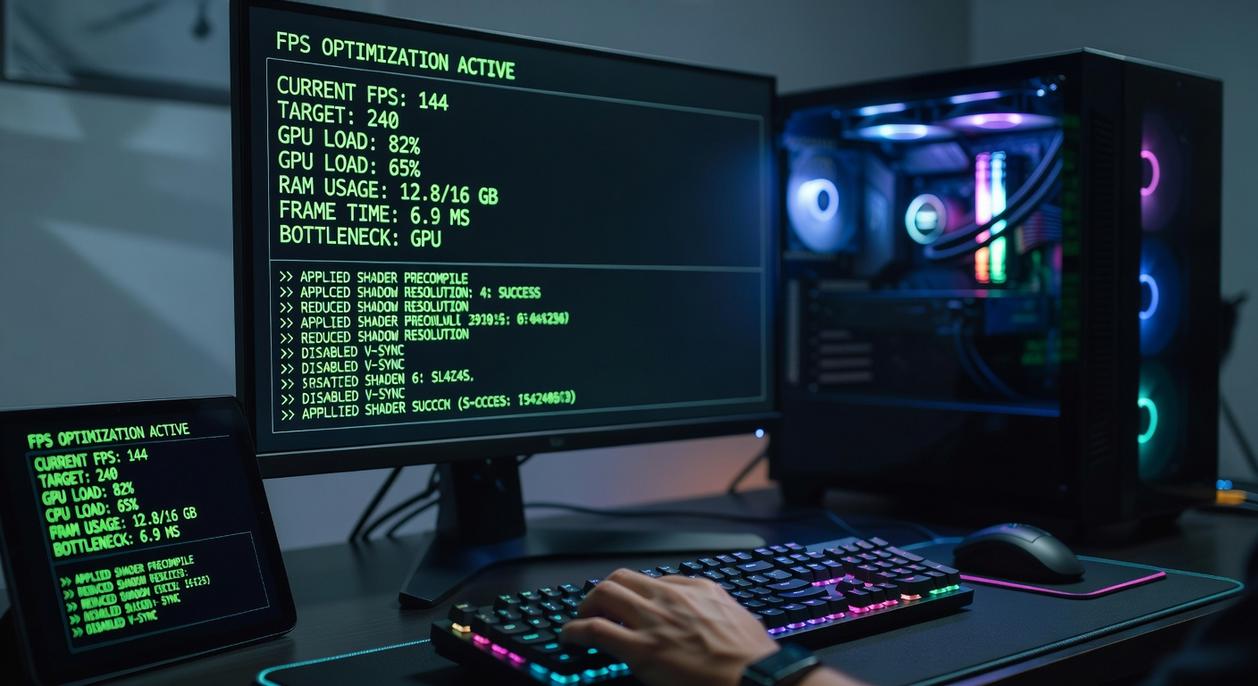
Before tweaking in-game sliders, start with your system. In many cases, the biggest performance gains come from outside the game itself.
Update Your Graphics Drivers
First and foremost, update your GPU drivers. NVIDIA, AMD, and Intel routinely release game-ready drivers with title-specific optimizations. For example, NVIDIA reported performance gains of up to 20% in certain titles after driver updates (NVIDIA Release Notes). These updates often include shader optimizations, bug fixes, and better CPU-GPU scheduling. Skipping this step is like tuning a race car but leaving old fuel in the tank.
Configure Windows for Gaming
Next, enable Game Mode in Windows Settings. Microsoft states that Game Mode prioritizes system resources for active games by reducing background activity (Microsoft Support). Additionally, turn on Hardware-accelerated GPU Scheduling, which reduces latency by allowing the GPU to manage its own memory queue more efficiently. Together, these boost fps settings without touching in-game graphics.
Optimize Power Plan Settings
Meanwhile, check your Power Options. Set your plan to High Performance or Ultimate Performance. Balanced mode can throttle CPU frequencies to save energy, which hurts frame consistency during intense scenes. A steady clock speed equals steadier frames.
Manage Background Processes
Finally, close unnecessary applications. Web browsers (especially with 20+ tabs), streaming software, and extra launchers consume RAM and CPU cycles. Use Task Manager to end non-essential tasks before launching your game. Even freeing 1–2GB of RAM can noticeably reduce stutter in memory-heavy titles.
Your Blueprint for a High-Performance Gaming Rig
You came here to fix low frame rates—and now you have a complete, step-by-step checklist to do exactly that. From high-impact in-game tweaks to deeper system-level adjustments, you’re equipped to tackle inconsistent FPS the right way.
The truth is, stuttering gameplay isn’t just a graphics issue. It’s a hardware and software balance problem that demands a methodical solution. By systematically reducing the strain on your GPU and CPU, you free up resources for what actually matters: rendering frames quickly and consistently. That’s why these boost fps settings work—they prioritize performance where it counts.
Don’t let lag keep costing you matches or immersion. Apply each change one at a time, test your results, and dial in the sweet spot for your specific setup.
Start optimizing now. Smooth, stable gameplay is within reach—take control of your performance and feel the difference in your next session.
 Yvendra Velmoria founded Tportstick with a singular mission: to bridge the gap between casual play and professional-grade performance. By focusing on the intricate nuances of gaming mechanics and the specialized world of stick-based controller mods, Velmoria has created a hub where technical optimization meets elite strategy. Under her leadership, the platform doesn’t just report on esports coverage; it provides the optimization hacks and pro-level insights necessary for players to master their hardware and dominate the digital arena.